Disclaimer: the instructions in this blog post is largely based on Techno Tim’s video Perfect Proxmox Template with Cloud Image and Cloud Init with my own modifications.
Why using templates in Proxmox
For certain cases we need to spin up seveal VMs to achieve our task, building a distributed system like a Kubernetes cluster, hosting a Jenkins CI/CD platform or processing data at scale with Apache Spark. Without a template, we would need to install the operating systems as many times as the number of instances required, making it a hassle and sometimes impractical.
VM template exists to solve this issue, we just need to build a minimal base VM, convert it to a template then we can just clone it as many times as we like. This greatly simplified the process of spining up multiple VM instances.
cloud-init
cloud-init is used to preconfigure the VM instances during it’s startup. We will configure the username, password, SSH keys and network configuration using a cloud-image drive. The Debian cloud image we use in this post has cloud-init support included.
Instructions
Download Debian cloud image
SSH into your Proxmox host, then head to Debian Official Cloud Images and download the image, you can choose the version according to your need, I used the generic image here.
wget https://cloud.debian.org/images/cloud/bookworm/latest/debian-12-generic-amd64.qcow2 && wget https://cloud.debian.org/images/cloud/bookworm/latest/SHA512SUMS
Compare the checksum
sha512sum -c SHA512SUMS 2>&1 | grep OK
If you see debian-12-generic-amd64.qcow2: OK, then the image is good to be used.
Create VM
Now we can create a VM with this command(adjust accoding to your need)
qm create 8000 --memory 1024 --cpu x86-64-v2-AES --bios ovmf --machine q35 --efidisk0 local-lvm:0,format=qcow2,pre-enrolled-keys=1 --cores 1 --name debian-cloud-template --net0 virtio,bridge=vmbr1
I used vmbr1 here as the bridge since I have a separated VLAN configured specifically for virtual machines. If you do not have a separate network for VMs you can just use vmbr0.
Change local-lvm to your custom storage if needed.
Resize image
We need to resize the image since the default size is too small for most use cases, I choose 32GB here.
qemu-img resize debian-12-generic-amd64.qcow2 32G
Import image into Proxmox
qm disk import 8000 debian-12-generic-amd64.qcow2 local-lvm --format qcow2
Change local-lvm to your custom storage name if you have a separate VM Disks storage configured.
Attach the disk to a SCSI controller
qm set 8000 --scsihw virtio-scsi-pci --scsi0 local-lvm:8000/vm-8000-disk-1.qcow2
Change local-lvm to your custom storage if needed.
Attach a cloud-init drive
qm set 8000 --ide2 local-lvm:cloudinit
Change local-lvm to your custom storage if needed.
Make the VM boot from disk only
qm set 8000 --boot c --bootdisk scsi0
Add serial console
qm set 8000 --serial0 socket --vga std
Set OS type
qm set 8000 --ostype l26
Enable start at boot
qm set 8000 --onboot 1
Enable QEMU Guest Agent
qm set 8000 --agent enabled=1
Note: We still need to install the qemu-guest-agent package in the cloned VM later.
Configure cloud-init
Now head to your Promox web interface, select the VM we created, and click Cloud-Init on the right side, we see the cloud-init configuration interface:
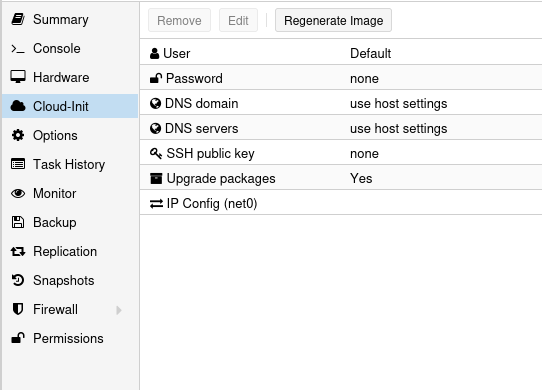
We can configure user, password, DNS, SSH key, upgrade packages and network, after filling in those configurations, click Regenerate Image to regenerate cloud-init image.
Create template
qm template 8000
Note: This is a one way process, after this command is done, we cannot convert this template back to a regular VM.
Create VM from template
qm clone 8000 135 --name debian-vm-1 --full --storage local-lvm --format qcow2
Now we cloned our first VM from the template we just created! And this is all you need to create a VM from a template!
Miscellaneous
If you accidentally started the VM before you reach the Create template section, there are ways to reset the machine-id. However I recommend just restarting from scratch since it would be more straightforward.
Future work
- Customize the cloud-init config beyond the options provided by Proxmox web interface.
- Consolidate the steps in this post into a script.